
Thank you for your interest in testing this beta app.1
You'll need a ChatGPT Plus or Pro account. (A paid account.)
You will also need to activate Developer Mode. Just go to ChatGPT in a web browser.
Steps
-
Navigate to ChatGPT on web (Chrome, for example) on your laptop/desktop.
-
Go to your settings in the lower left-hand corner. Open your settings.
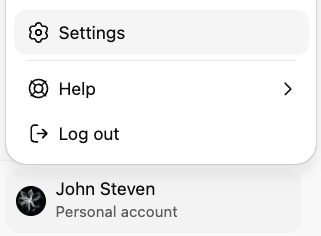
- On the Apps tab in your settings, look, or scroll, for Advanced Settings:

- Switch the Developer Mode toggle ON.
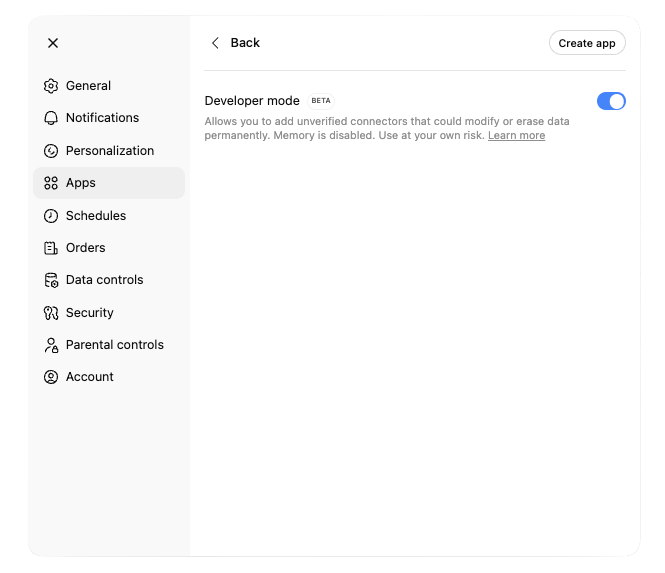
-
On the same dialog, click Create app.
-
Point ChatGPT to our MCP Server URL and fill out a little information. The URL is the important bit.
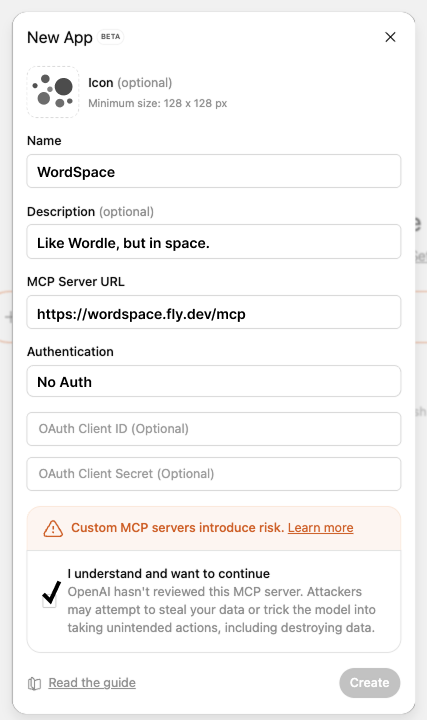 click to expand the image
Server URL (click to copy below):
https://wordspace.fly.dev/mcp
Icon
You can get the WordSpace Icon here, if you'd like to add it for completeness. Click, and right-click on the displayed icon to save.

Play
- Once that's done, you can invoke the game in ChatGPT by typing:
@WordSpace
This should auto-complete, and appear as a small badge beneath the chat input. Once it's "locked-in," just hit send (no further input needed), and it will begin the game.
For gameplay tips and strategy, see the Player Guide.
Please let us know what you think.
Footnotes
-
This app was made with the OpenAI Apps SDK. OpenAI requires, quite reasonably, sufficient testing before you submit to the formal review and approval process that makes an app available, or "published," in OpenAI's ecosystem. ↩